
»
Setting Up Your Profile Pages
Setting Up Student Pages: Option One
When it comes to profile pages, there are a few ways in which this can be done but our favorite and arguably the easiest is to get the students to do all the work! Inviting students is a fantastic way to get all your leavers involved when you create a yearbook.
To begin this all you need to do is click on the ‘My Account’ tab on the left-hand side of the Online Designer and then navigate to ‘Invite Students’. See below for an example:
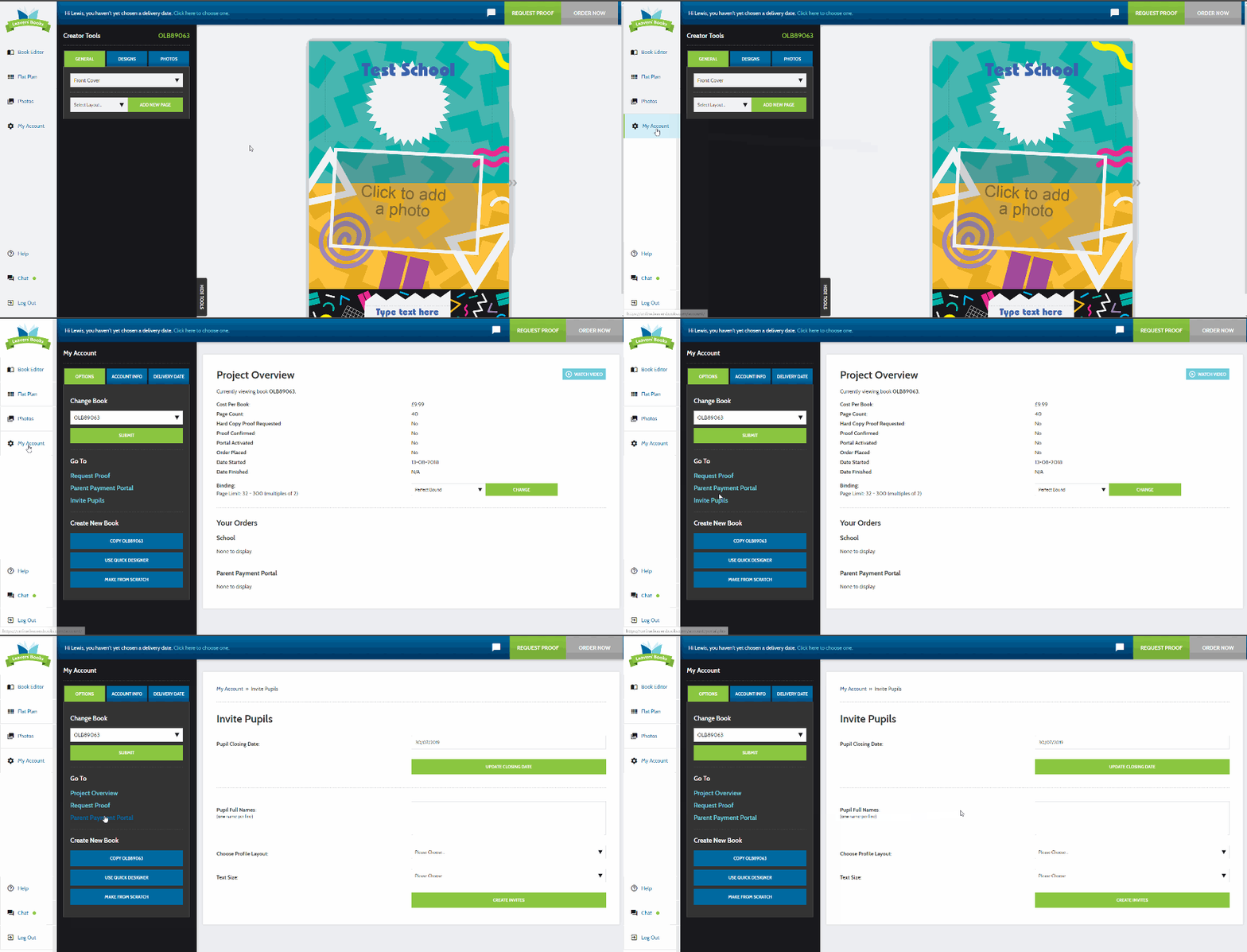
Creating your yearbook student pages
Once you are here there are a few very simple options to fill in and your yearbook invites are created. First, you want to enter the deadline the students have to get their profile written, enter the names of the students and select which page style you prefer. Usually, we recommend 2 students per page because this gives you plenty of space for text and two photos per student. Select your text size (medium is good) and click on ‘Create Invites’.
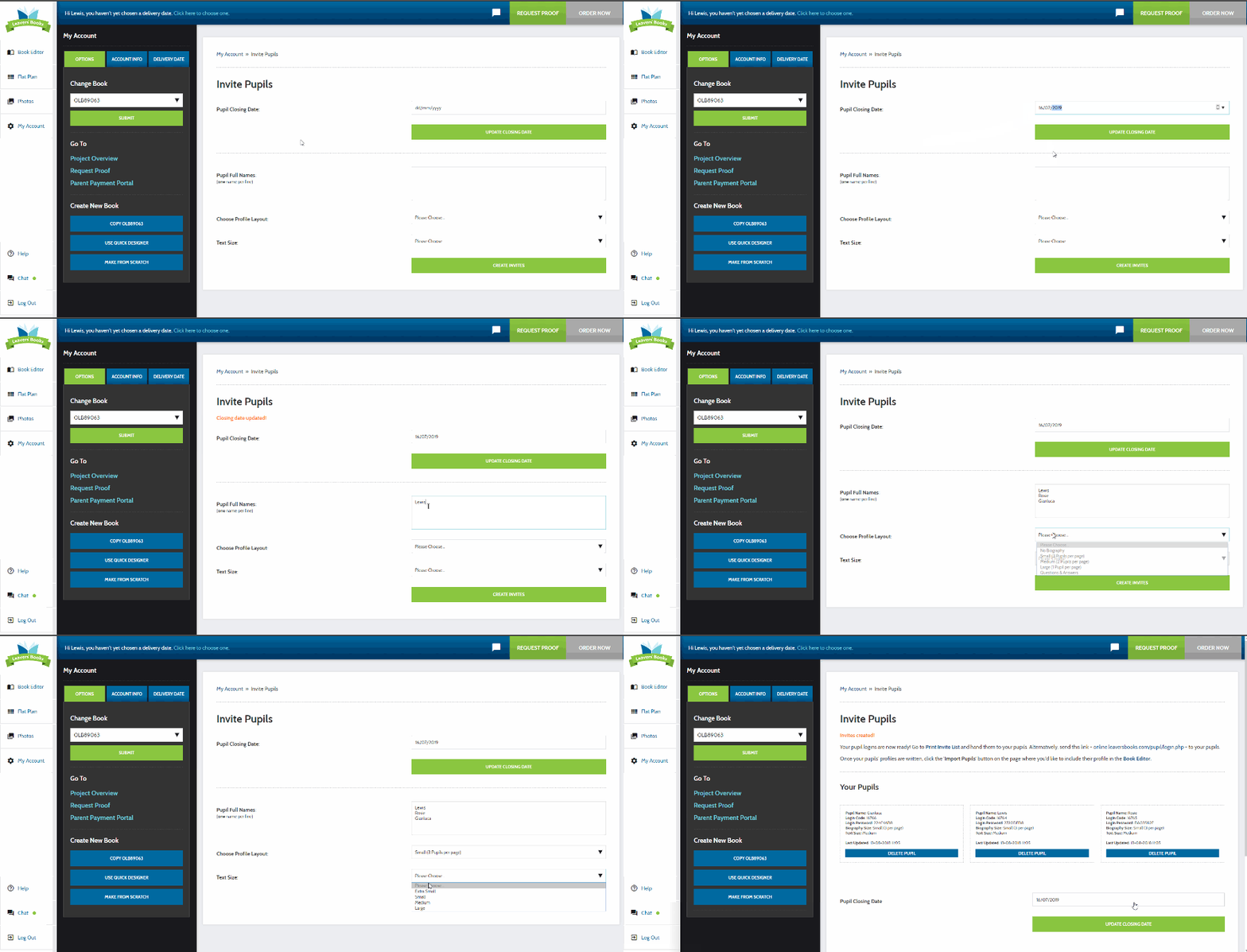
Letting your students create their yearbook page
This will provide a unique URL and a set of invites for the students you have added. This lets your students add their own profile text about what they enjoyed at school, their favorite memories and any other information you may want with the addition of their favorite photos.
Once they’ve done this, add the type of page you selected before and simply ‘Import’ your student’s profiles into your yearbooks. You can edit them if there are any mistakes or you just want to add a little more text.
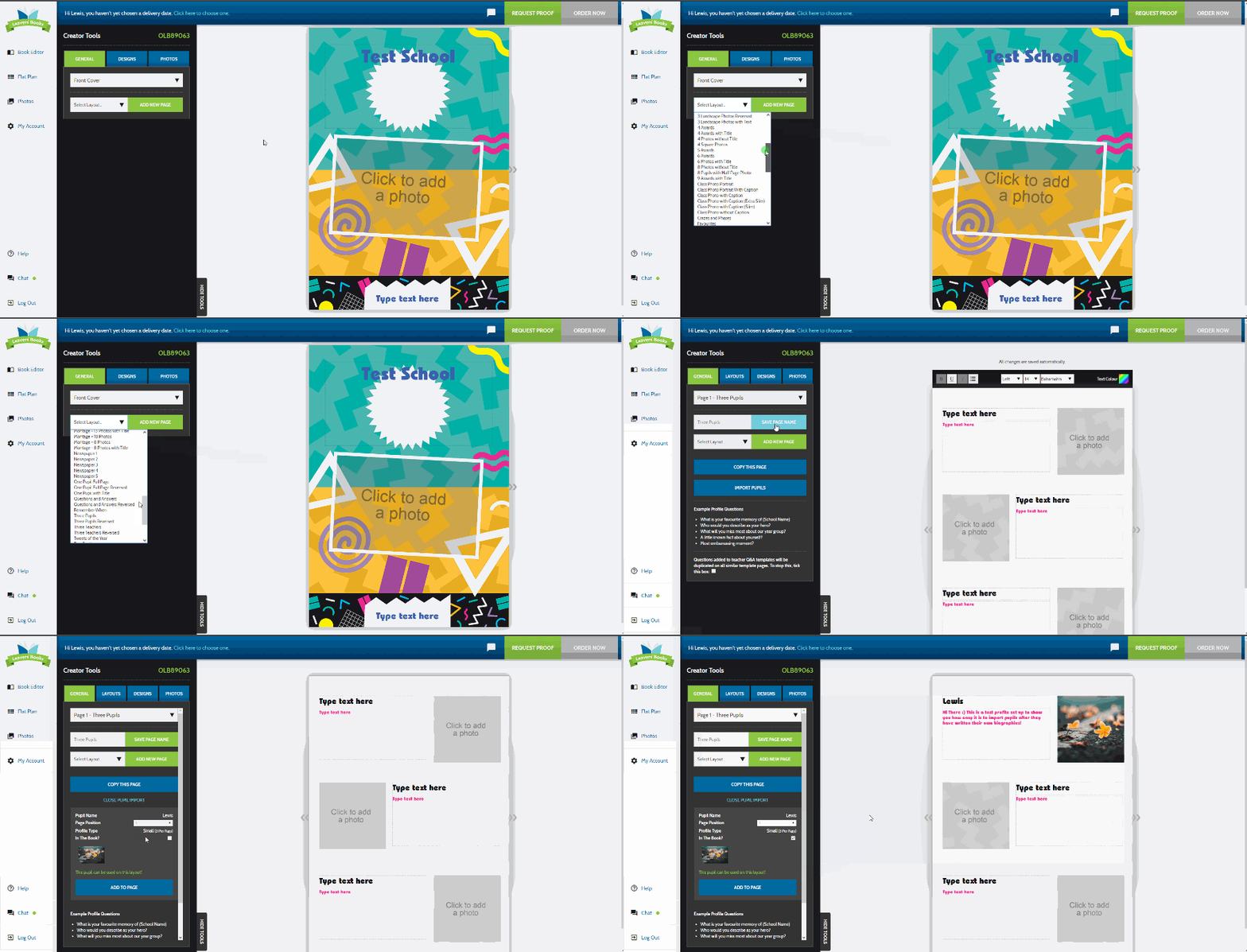
Importing your student yearbook pages
Setting Up Profile Pages: Option Two
Another option is for you to add the pages from inside the ‘Book Editor’ and to write the profiles yourself. While this may be a bit longer for you it means you don’t miss out on any of the fun. We recommend this method if you are aiming to keep the school yearbooks a surprise for the leavers.
This method is very simple and can be done by adding a new page on the Flat Plan screen. Select the page layout you like, the page you want the profiles to start at and click ‘Insert New Page’. From here, add the student profiles in your desired order, add the photos and begin making your yearbooks feel personal.
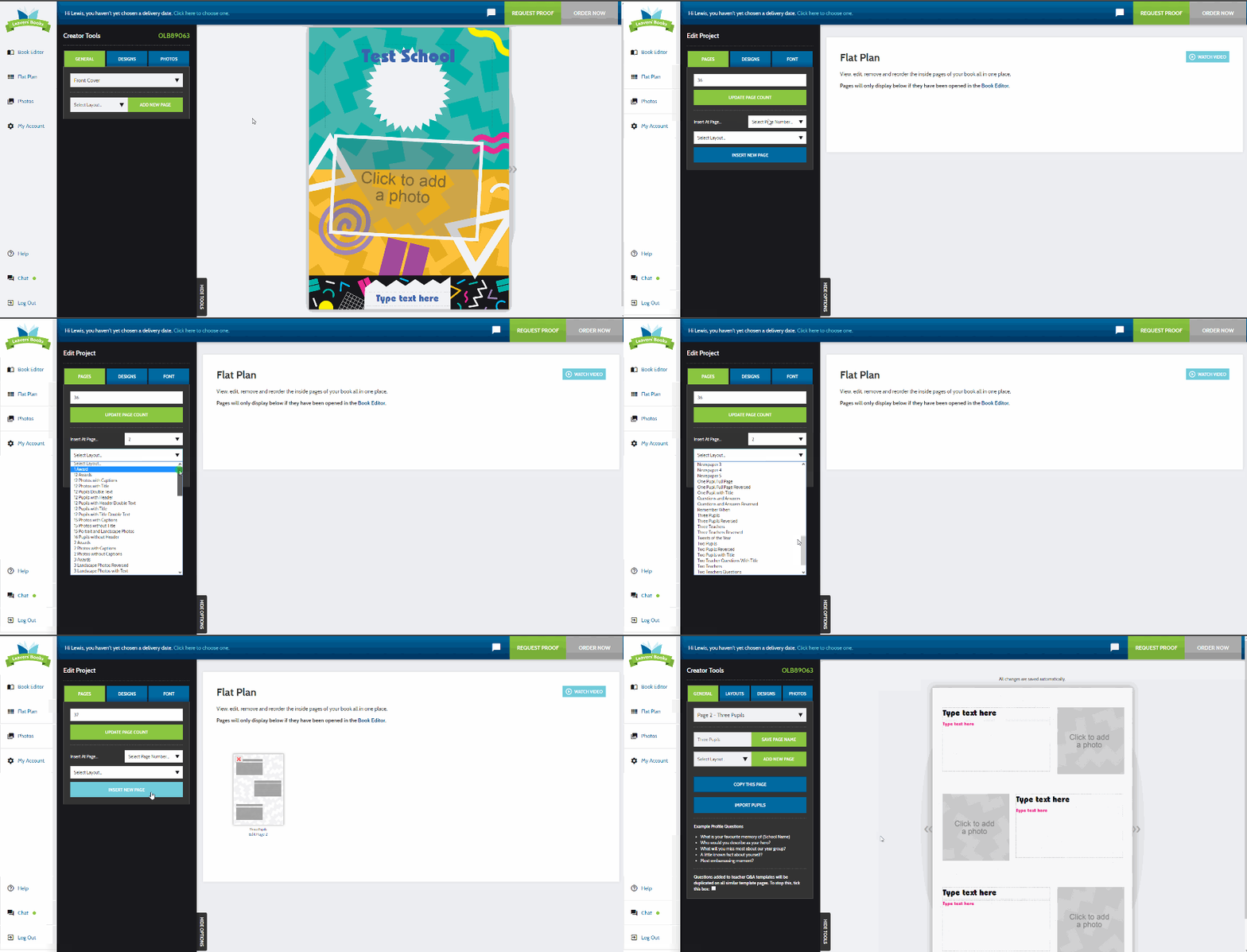
Importing student yearbook pages through our flatplan
Alternatively, you can add a new page from the ‘Book Editor’ as shown in Fig 3. Once added, you just follow the same steps mentioned before and your profile pages will start taking shape.
